Getting started
- Allow Location when asked (needed for the map, distance, and sun/moon).
- Open the Compass tab (default).
- Set a Home or Parked Car location (see below).
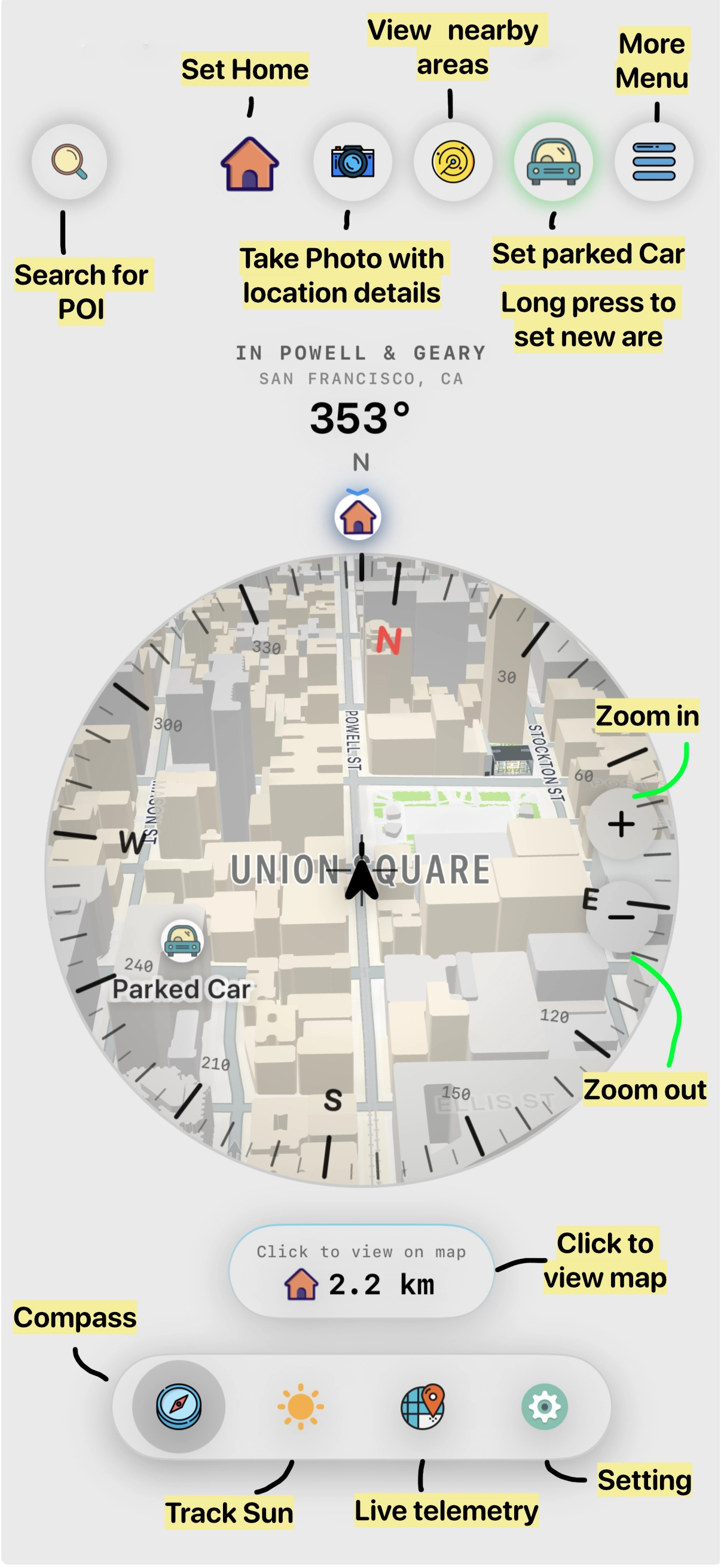
- Point the top of your phone toward the chevron on the dial—you’ll feel a haptic thump when you’re aligned.
Tip Use a real iPhone outdoors. The Simulator can’t show true compass heading or a reliable GPS feel.
Tabs
Tap the floating capsule at the bottom to open the tab hub:
| Tab | What it does |
|---|---|
| Compass | Live dial over a rotating map; point toward Home, car, or a searched place |
| Sun Shadow | Sun and moon direction, shadows, and magic-hour timing |
| Location | Live GPS telemetry, place names, speed, and altitude |
| Settings | Theme, units, Pro, calibration, support |
Compass
Reading the dial
- The bezel shows N / E / S / W and spins like a physical instrument.
- The map under the dial stays north-up relative to the world as you turn.
- Chevrons on the rim mark Home, Parked Car, and a search result.
- Distance pills under the dial show how far each target is. Tap a pill to peek at the map; expand for a full map sheet with range.
Zoom
Use the frosted + and − buttons (designed for one-handed use). When you zoom in close enough, rim chevrons become pins on the map.
Search
Use Search places… at the top to pick any place as a temporary target. Clear it later from the overflow menu ((Clear Search Result).
Nearby Areas (radar)
Toggle the radar control to show Nearby Areas—city / area nodes on distance rings.
- Needs a network connection; otherwise you may see RADAR OFFLINE.
- Tap a node to make it your active search target.
Setting Home and Parked Car
Home
- Tap the Home control (if unset) or open the menu → Set Home Location.
-
In the Set Home sheet:
- Search “Search address or place…”, or
- Pan the map so the center crosshair sits on your spot, then tap Set Home Here, or
- Tap Use Current Location.
- You’ll see a confirmation when Home is saved.
Clear anytime via Clear Home Location.
Parked Car
- With no car saved: tap the car control to quick-save your current GPS position.
- With a car saved: tap to show or hide it on the dial.
- Long-press (~½ second) to clear the parked car.
- Or use the menu: Set Parked Car Location / Clear Parked Car Location.
Saved targets sync to the Apple Watch app when the phone is connected.
Sun Shadow
Explore how light falls at your location today.
- The porthole shows the ground map with sun/moon and cast shadows.
- Drag the time scrubber to “time travel” through today. Tap NOW (or LIVE) to return to the current time.
- Phase chips show lighting conditions such as NIGHT, TWILIGHT, BLUE HOUR, GOLDEN HOUR, SOFT LIGHT, and HARD LIGHT.
- Readouts include AZIMUTH, ELEVATION, SUNRISE, SUNSET, and moon visibility / altitude.
- MAGIC HOURS lists golden and blue windows (AM/PM). Tap a row to jump the scrubber.
If GPS isn’t ready yet, you’ll see Acquiring GPS signal…
Location (Current Location)
Live place and motion data:
- POSITION FIX with ACQUIRING / LIVE status, plus a map preview (EXPAND → Position Map).
- GEOGRAPHIC DATA: area, city, street, district, state/province, country / postal.
- RAW TELEMETRY: latitude, longitude, course, GPS accuracy. Tap lat/lon to copy (you’ll see COPIED).
- Speed block: average speed, top speed, altitude (MSL), heading. Units follow your Settings (km/h or mph). Shows STATIONARY when you’re not moving.
Data stamp photos
From Compass or Location, tap the camera control to capture a photo with a location data overlay.
- Review DATA STAMP PREVIEW.
- Optionally edit location / area name and add a POLAROID NOTE.
- Share, or Save to Photos.
- Free: a small number of complimentary stamped exports (then watch a short video, or upgrade to Pro).
- Pro: unlimited stamped exports, no ads.
Camera and Photos (Add Only) permissions are requested only when you use this feature.
Settings
| Section | Options |
|---|---|
| Pro | Upgrade, Restore Purchases; shows Pro Active when unlocked |
| Appearance | Theme: Day / Night / Auto |
| Units | Auto / Metric / Imperial |
| Support | Rate the App, Our Other Apps, Support, Privacy Policy, Terms of Use |
| Compass | Calibrate Compass — figure-8 motion guide |
| About | App info |
Free vs Pro
- Free: banner ads in places; limited complimentary data-stamp exports (then rewarded video or Pro).
- Pro (lifetime, one-time purchase): remove ads; unlimited stamped photo exports. Use Restore Purchases if you reinstall or switch devices.
Apple Watch - Coming Soon
The Watch app shows a dial focused on Home, Parked Car, or POI (use the Digital Crown to cycle focus).
From the Watch sheet you can:
- Set Home Here / Clear Home
- Set Car Here / Clear Car
- Clear POI
Empty states may ask you to Enable Location, wait for GPS, or set Home/Car on the phone or Watch.
Permissions
| Permission | Why |
|---|---|
| Location (When In Use) | Live map, bearing and distance to targets, sun/moon math |
| Motion | Smooth true-north heading |
| Camera | Data stamp capture |
| Photos (Add Only) | Save stamped photos to your library |
Location data is used on-device for navigation features. See the Privacy Policy for details.
Troubleshooting
Compass feels off
Open Settings → Calibrate Compass and move the phone in a figure-8. Keep the phone away from metal mounts, magnets, and speakers.
Stuck on Acquiring / no GPS
Go outdoors or near a window, wait a moment, and confirm Location is allowed for Roamy in iOS Settings.
Radar shows RADAR OFFLINE
Check your network connection, then toggle Nearby Areas off and on.
Wrong Home or car
Clear the target from the Compass menu and set it again. Changes are permanent until you re-set them.
Watch not updating
Open the iPhone app nearby with Bluetooth on so Watch Connectivity can sync Home / Car / POI.
What Roamy is (and isn’t)
- Is: a point-me-back compass with map, sun/moon light tools, telemetry, and optional photo stamps.
- Isn’t: a turn-by-turn navigation or multi-stop trip planner. One Home, one Parked Car, and one active search target at a time.
Support
- In-app: Settings → Support
- Web: gemshi.com/HomeCompass
- Privacy: Privacy Policy
- Email: gemshi@me.com