Help & Support
Purpose of the App
CountIt helps you track anything you want to count (habits, routines, symptoms, events, training, etc.). Each tap creates a timestamped log, and the Journal helps you spot patterns across day/week/month/year.
Home screen controls
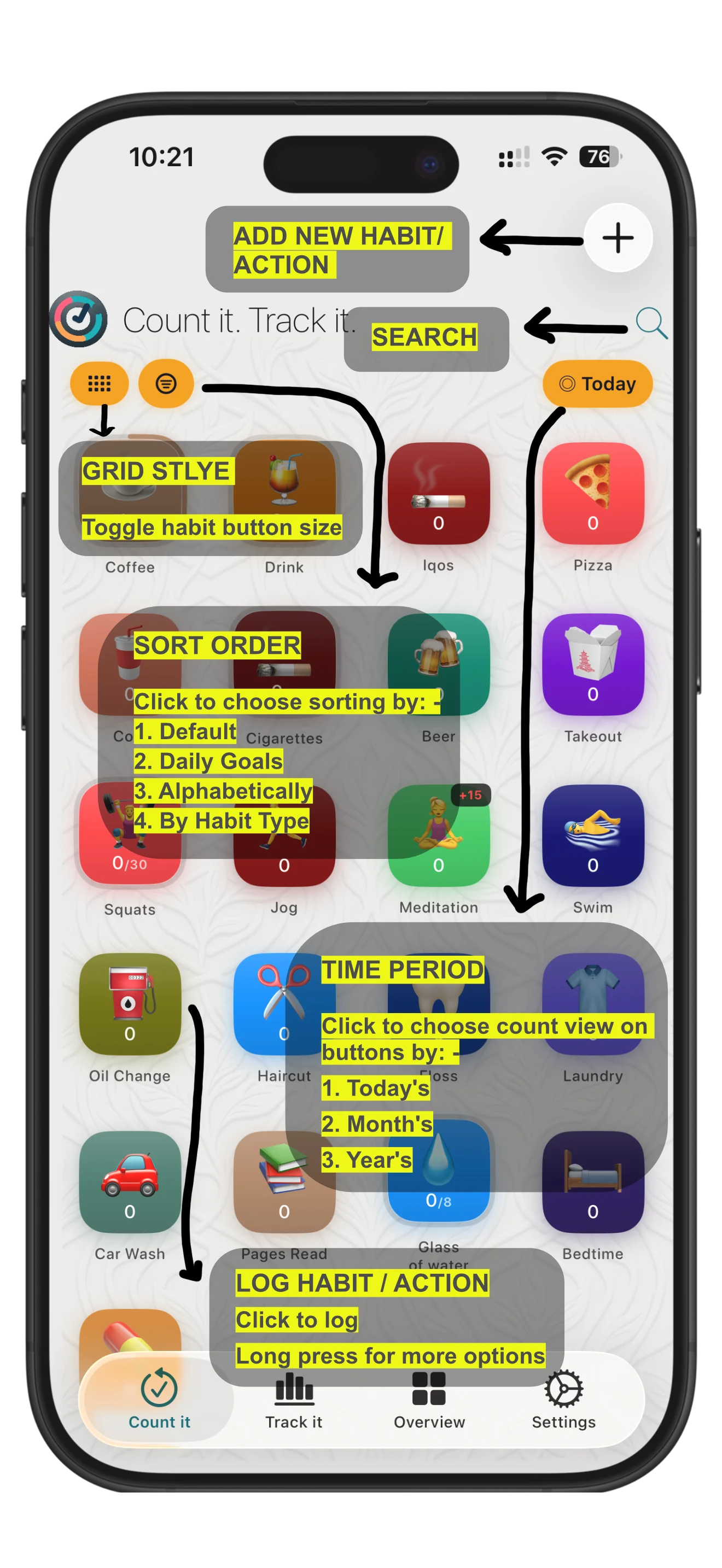
Use the toolbar above your habits to change button size, sort order, and which count each button shows.
Getting started
Add a habit
- From Home, tap the + button.
- Or go to Settings → Add Habit (if available in your build).
- Choose a name, icon, and color.
- (Optional) Set a Habit Type and a Daily Target (goal).
Habit types (Positive / Negative / Neutral)
CountIt can help you frame trends differently depending on whether you’re building a positive habit or reducing a negative one. You can choose the type when creating/editing a habit.
Logging habits (the basics)
Tap to log
- On Home, tap a habit to add a log entry.
- Every log saves the date and time automatically.
Batch Count (log more than 1 at once)
Some habits can be configured with a Batch Count (for example, +5 per tap instead of +1).
- When Batch Count is enabled, each log saves a Count value greater than 1.
- On Home, you may see a small
+Nbadge on the habit showing the batch amount.
Add a note to a count
If a habit is set up to use notes (or you choose Count with note from the long‑press menu), CountIt will prompt you to enter an optional note and then save it with that log.
Long‑press actions (quick tools)
Long‑press a habit on Home to access common actions such as:
- Undo last log
- Focus Mode
- Choose a specific time/date (useful if you forgot to log earlier)
- Catch up (quick options like “30 min ago”, “1 hour ago”, “yesterday”, etc. depending on your habit)
- Custom count (add a specific count at a selected date/time, if available)
- Count with note (for habits that use notes)
- View Description (if the habit has a description)
Tip: If you use Widgets or Shortcuts, you can log without opening the app.
Daily goals (Daily Target)
Daily Target lets you set a per‑day goal for a habit (for example, “Drink Water: 8/day”).
How it works
- If a habit has a Daily Target, CountIt shows a progress ring and a checkmark when you hit the goal.
- When you reach your target, you’ll get celebration/feedback (depending on your Sound/Haptics settings).
Set or change a Daily Target
- Open Settings → (select a habit), then find Daily Target.
- Toggle Set Daily Target, then use the stepper to choose your target.
Sorting by goals
On Home, you can change the habit ordering to put habits with daily targets at the top (sorting/arrange options may include “By goal”).
Focus Mode
Focus Mode is designed for habits that need multiple taps in a single session (e.g., reps, sips, laps).
How to use Focus Mode
- Long‑press a habit on Home → Focus Mode
- In Focus Mode you can:
- Tap to increase the session count
- Undo with the minus button
- Toggle Haptic / Sound
- Optionally group multiple taps into a single saved log (depending on your build/settings)
- Add a Session Note (applies to logs in that focus session)
- Exit with X
Reminders (notifications)
CountIt can remind you when a habit hasn’t been logged for a while.
Enable reminders for a habit
- Open Settings → (select a habit) → Reminder
- Toggle Enable Reminder
- Choose: “Remind after X day(s) of inactivity”
Check reminders now
In Settings, use Check Reminders Now to manually run a reminder check.
If reminders don’t work: make sure Notifications are allowed for CountIt in iOS Settings.
Journal / Reports
Timeframes
In Track it, you can review your habits across different timeframes:
- Daily
- Weekly
- Monthly
- Yearly
Views
Depending on your selected view, you can explore the data as:
- List (a readable log breakdown)
- Chart
- Heatmap (calendar intensity view)
- Time Trend (trend over time)
Notes (and searching)
Some logs can include an optional Note (text). In the log list, you can also search across notes, dates, and counts (if enabled in your build).
Editing logs (manual add / edit / delete)
If you need to fix history (missed entries, wrong time, wrong note, etc.), you can edit logs from Settings.
Manually add logs
- Go to Settings → (select a habit) → Manually Add / Edit Logs
- Tap Manually Add Record (or Add New Logs depending on your screen)
- Pick a date/time, set a count, and optionally add a note
- Save the new logs
Edit an existing log
From the habit’s log list (inside Manually Add / Edit Logs) you can typically edit the note and the date/time.
Delete logs
From the same log list you can select one or more logs and delete them. (This cannot be undone.)
Heatmap (and target‑aware intensity)
Heatmap cells show how active you were on each day. If a habit has a Daily Target, the heatmap intensity is normalized to your goal so it’s easier to compare days.
Heatmap colour settings
You can change the colour mapping in Settings → Heat map colours:
- Standard: Green = less, Red = more
- Reversed: Green = more, Red = less
- Auto: Based on habit type
- Positive habits → Green = more
- Negative/Neutral → Standard
Current streak
Journal can show your current streak (how many consecutive days you’ve logged).
Compare habits
Compare in Journal
In Journal, tap Compare Habits to compare multiple habits.
Widgets (log from your Home Screen)
Add a widget
- Long‑press the Home Screen → Edit → Add Widget
- Search for CountIt
- Choose a size and add it
Widget styles
- Classic Style: A list of habits. Tap a row to log.
- Single Habit: Pick one habit and see metrics (Today / Month / Year / Total). Tap the icon to log.
Widget settings (inside CountIt)
In Settings → Widget Appearance, you can customize:
- Widget appearance: Dark / Light / Auto
- Classic count display: Total / Today / Month / Year
Daily Target on widgets
If you have a Daily Target, widgets can show Today as today/target and show a checkmark when you reach your goal.
Tip: For better responsiveness and feedback when tapping widgets, enable notifications.
Shortcuts (automation)
Add a CountIt Shortcut
- Open Shortcuts
- Create a new shortcut (+)
- Add an action and search for CountIt
- Choose a Log Habit action and select the habit you want to log
Why it’s useful
- One‑tap logging from Home Screen shortcuts
- Voice logging (Siri)
- Automations (time, location, events)
iCloud Sync (backup & multi‑device)
CountIt can sync your habits and logs across devices using iCloud.
Enable iCloud Sync
- Go to Settings → iCloud Sync → Sync to iCloud
- When enabling, CountIt will create a local backup first.
- After enabling (or disabling), you may be asked to close and reopen the app.
Restore from Backup
If a backup is available, you can restore it from Settings → iCloud Sync → Restore from Backup.
If iCloud Sync is unavailable: ensure you’re signed into iCloud in iOS Settings.
Import & Export
Export data
You can export your data to analyze it elsewhere.
- From Journal/Report: export the selected habit’s logs
- From Settings: export all habits and logs
Export formats may include:
- CSV (spreadsheets)
- PDF (shareable report) (if available)
Import data (CSV)
To import:
- Go to Settings → Import Data from CSV
- Pick a
.csvfile (best results: import a file that was exported from CountIt)
If your import contains duplicates, you may be offered options such as:
- Merge (recommended): import only new logs (skip logs with the same Habit Name + Date + Time)
- Replace: delete existing logs for matching habits and replace them
- Allow duplicates: import everything
Customizing the experience
Sound & haptics
In Settings → Habit Feedback & Sound, you can customize:
- Haptics strength (or disable)
- Enable/disable sound, and choose the sound you prefer
Target achieved ring colour
In Settings, you can choose how the ring/checkmark looks when you hit a Daily Target:
- Green
- Auto (green for positive/neutral, red for negative)
Contact Support
If you run into any issues or have questions about using the app, or want any new features added, feel free to reach out to me at gemshi@icloud.com. I will try my best to help you out.
Notes: Some features may require Premium (depending on your current app version and subscription status).
© Gemshi